
Perhaps you’ve recently discovered Castle and found it an interesting streaming app. Now, you may be wondering if you can use it on your personal computer. Castle is an Android-based streaming application that runs only on compatible devices.
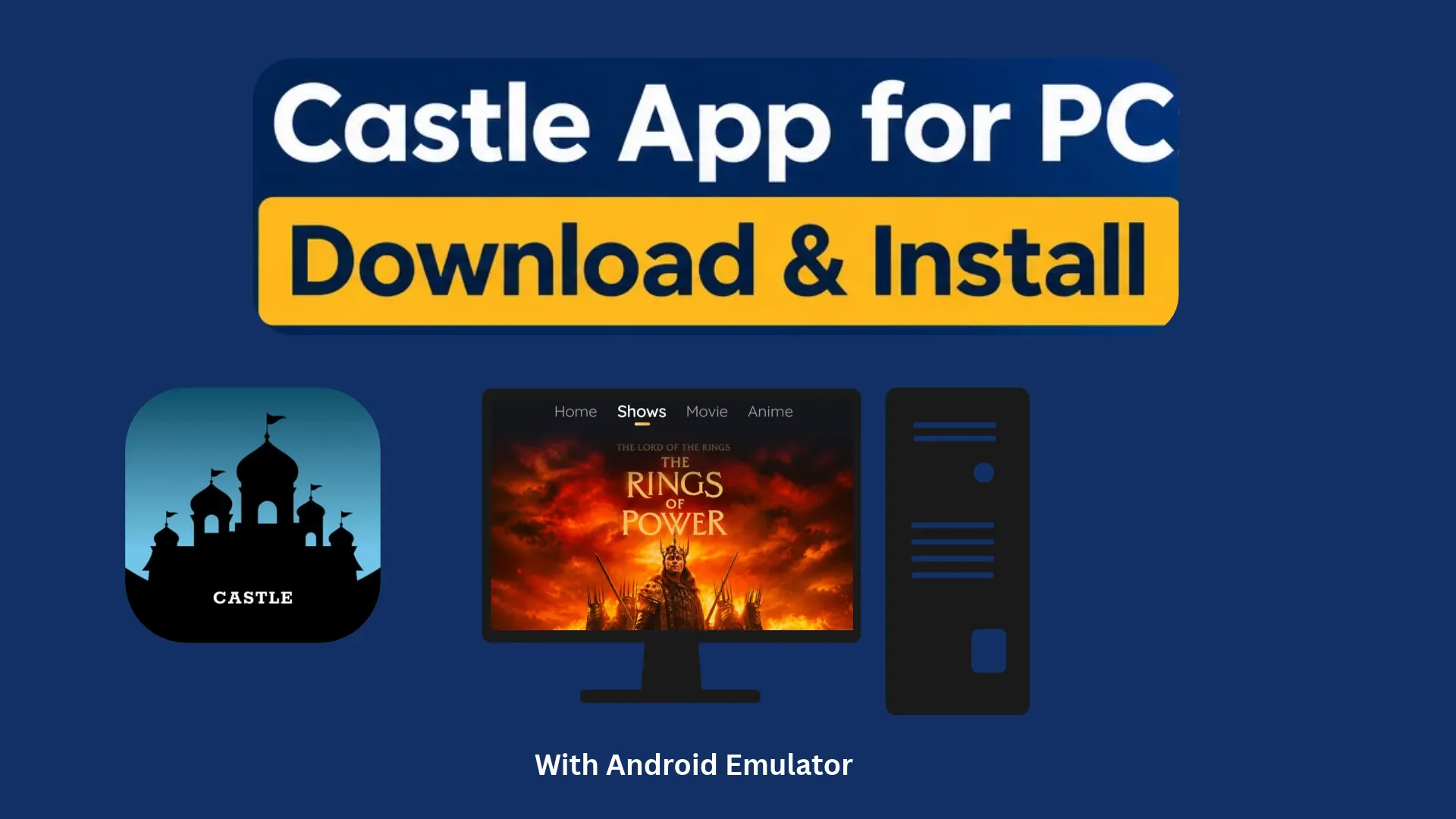
Since there is no Windows version of Castle available, you need an alternative method to install it. You can install Castle on a PC using an Android emulator. Wondering how to do that? Read on.
Why Use Castle on a Computer?
A PC or laptop has a bigger screen than a phone, so titles are easier to watch. You can also change the size of the emulator window to fit what you need. Your computer lets you do other things at the same time. For example, you can browse the web, check email, or work on a document while you watch. You need to make the emulator window smaller to keep your other apps in view.
Battery life is less of a worry too. You can plug your laptop in for long streaming sessions. With an emulator, you can also use a keyboard and mouse to move around the app. That makes it faster to type a search, pick a title, or look through the different sections.
Requirements to Install Castle on a PC
| Information | Details |
|---|---|
| Operating System | Windows 10 or Windows 11 |
| Installation Method | Using an Android Emulator |
| App File Format | APK |
| RAM | Minimum 4GB |
| Internet Connection | 4G/5G Mobile Data or Wi-Fi |
Steps to Use Castle on a Computer
Installing Castle on a PC/laptop involves multiple steps. Follow the steps below for a smooth installation.
Install Android Emulator Software
First, choose an emulator that supports your Windows version. Some notable names are LDPlayer, BlueStacks, and NoxPlayer. You can use the one that best suits the configuration of your computer. Now, follow the steps below:
- Open your preferred browser on your PC.
- Visit the emulator's official website.
- Find the download option
- Download the installer file to your computer.
- Open the downloaded file and follow the available instructions for installation.
- Run the emulator.
The first launch may take a little time as the emulator sets up its Android environment.
Download the APK File
- Open a web browser on your PC and visit the official Castle website.
- Click the download button to get the latest Castle APK file.
- Locate the downloaded file in your computer's Downloads folder.
Install Castle APK in the Emulator
Now, install the downloaded APK inside the emulator.
- Open the emulator on your PC.
- Look for the Install option in its interface.
- Click it and choose the APK file from the Downloads folder.
- Follow any on-screen instructions to complete the installation.
Launch Castle and Start Streaming
After installation, you can open Castle from the emulator.
- Find the Castle app icon on the home screen of your emulator.
- Click the icon to launch the app.
- Wait for the app to load its home screen.
- Browse the available movies, shows, anime, and other content.
- Select a title and start streaming.
Keyboard and Controller Mapping
Android emulators let you use a keyboard and mouse to control apps. Some basic controls include:
- Use the arrow keys to move through menus.
- Use the Enter key to select an option.
- Use the mouse to click buttons and select titles.
- Set controller buttons for supported actions, if your emulator allows it.
Note: The control options may differ between emulators. Castle may not support every keyboard or controller action directly.
How to Fix Common Castle App Installation Issues on PC
Sometimes, you may face problems while installing or running Castle through an emulator. Here are some common issues and ways to fix them.
Emulator Taking Too Long to Start
Usually, it happens when a PC has limited RAM. Sometimes, an outdated emulator can be the culprit.
- If unnecessary applications are running in the background, close them.
- Ensure your PC meets the emulator's system requirements.
- If required, update the emulator to its latest version.
- Restart your computer and try launching it again.
Castle APK Does Not Install
Sometimes, the APK does not download properly, or it is not compatible with the Android environment of the emulator. This could be the reason you are unable to install Castle.
- Remove the partially downloaded APK and redownload it.
- Check whether the emulator supports the APK.
- Make sure the emulator has enough free storage.
Black Screen Problem
A black screen may appear because of graphics settings, outdated display drivers, or emulator compatibility issues.
- Update your computer's graphics drivers.
- Restart the emulator.
- Check its graphics or rendering settings.
- Try another supported graphics mode if the emulator provides one.
If the problem continues, check whether the same content plays correctly on another supported device.
Streaming or Buffering Issues
Slow internet speed or temporary playback problems can cause buffering.
- Check your internet connection.
- Close other applications that use significant bandwidth.
- Restart your router if the connection is unstable.
How to Enable Hardware Virtualization (VT-x/AMD-V) in BIOS
Hardware virtualization helps an Android emulator run on your computer. It may be called Intel VT-x or AMD-V, depending on your computer's processor. You can turn it on by following the steps below:
- Restart your computer.
- Open the BIOS or UEFI settings. You may need to press F2, F10, F12, or Delete while the computer starts.
- Open the CPU, Advanced, or Security settings.
- Look for Intel Virtualization Technology (VT-x) or AMD-V (SVM Mode).
- Select the option and change it to Enabled.
- Save the changes and restart your computer.
Note: These steps may differ based on your computer brand and BIOS version. Check your computer maker's guide if you cannot find this setting.
Advantages and Limitations of Using Castle on PC
| Pros | Cons |
|---|---|
| Comfortable viewing experience on a larger screen | You need an Android emulator to run Castle on a PC |
| Easier multitasking while streaming | Emulator setup takes extra time |
| No need to worry about battery | |
| Easy navigation with keyboard and mouse |
FAQs
Can I use Castle on a Mac?
Castle runs on Android devices. However, you can install it on your Mac using a compatible Android emulator. Remember, your emulator must support your Mac model and macOS version.
Can I run Castle on a PC without an Android emulator?
No. Castle is an Android app, so you need a compatible Android emulator to run it on a Windows PC.
Can I use Castle on a PC with 4GB RAM?
Yes, you may be able to run Castle on a PC with 4 GB of RAM. However, the emulator may run slowly if other apps are open. Close apps you do not need to help your PC run better.
Final Words
Castle works on Android devices, but you can also use it on your PC with the help of an emulator. We hope this guide helps you install the app on your PC. If you haven't tried it yet, follow the steps above to install Castle on your PC.